Pro Features
Filters with color enhancement, stickers, slideshow, payment (PromptPay / card / coupon), gallery operations, reprints and the cloud upload queue.
Creative tools
Filters (LUT) managementPro
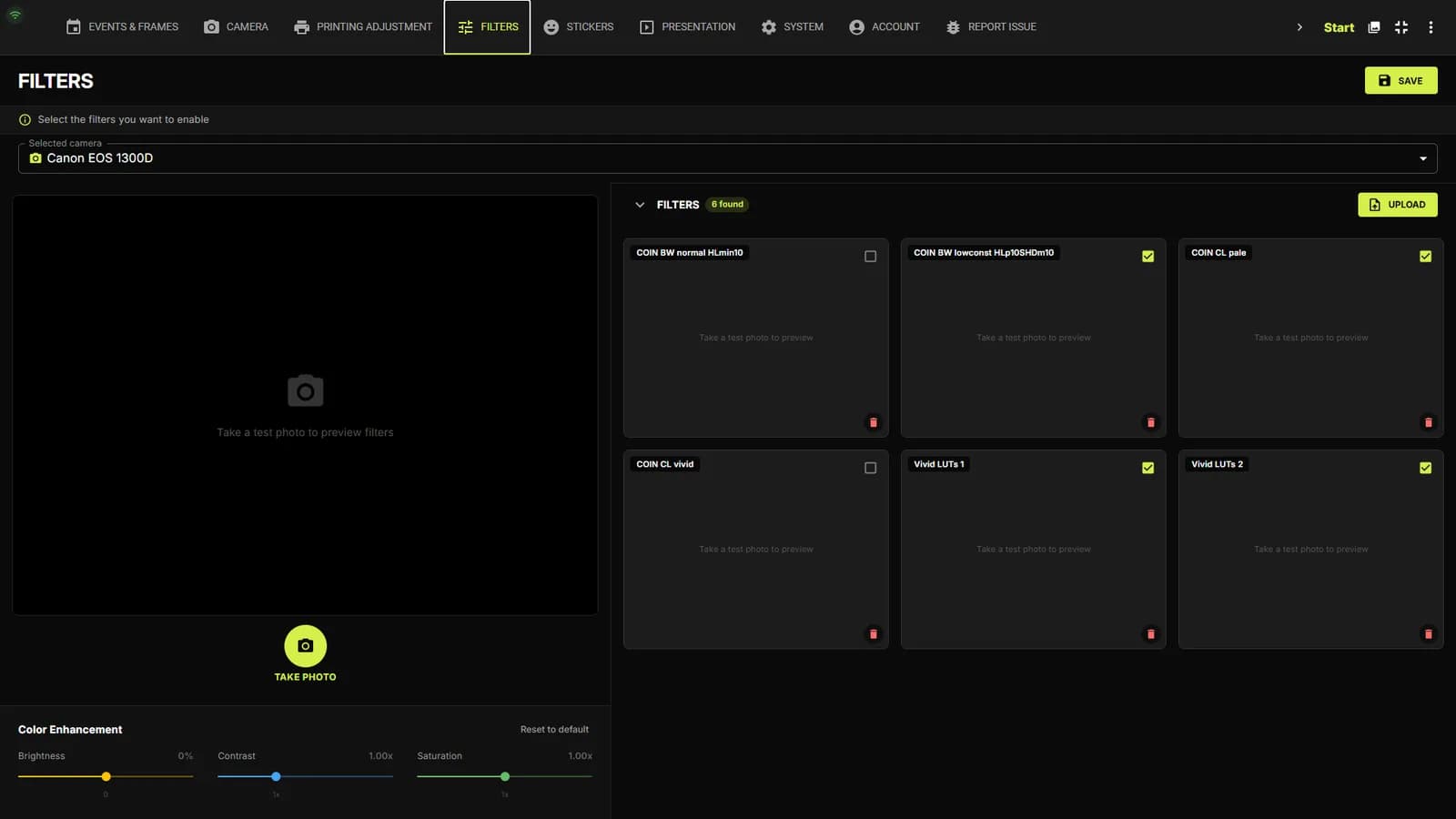
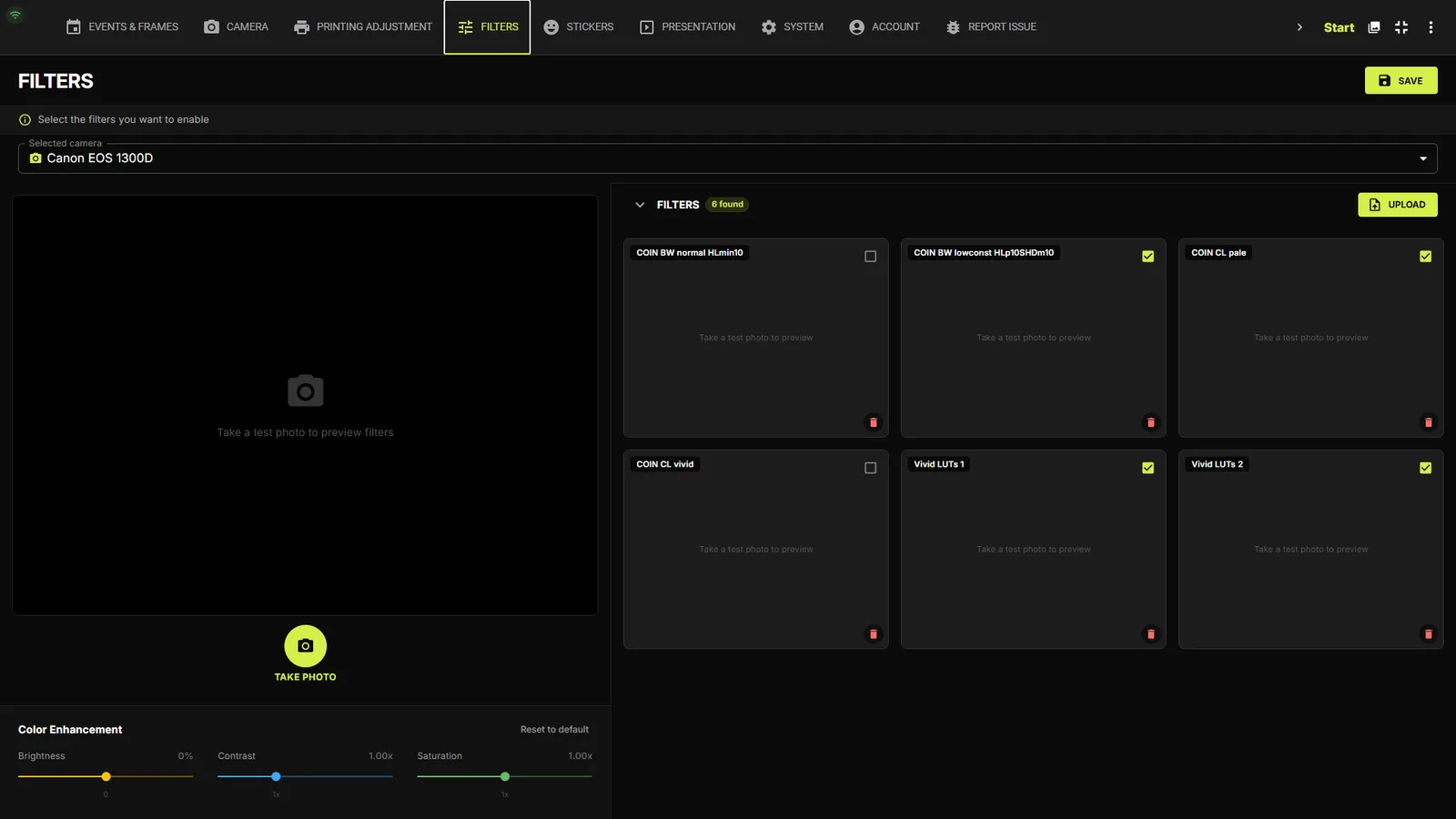
The FILTERS tab manages the color-grading presets guests can choose. UPLOAD .cube LUT files (drag & drop works too), tick the checkbox on each filter to enable it, and delete unused ones. Pick a camera and press TAKE PHOTO to preview every filter on a real test shot.
Color EnhancementPro
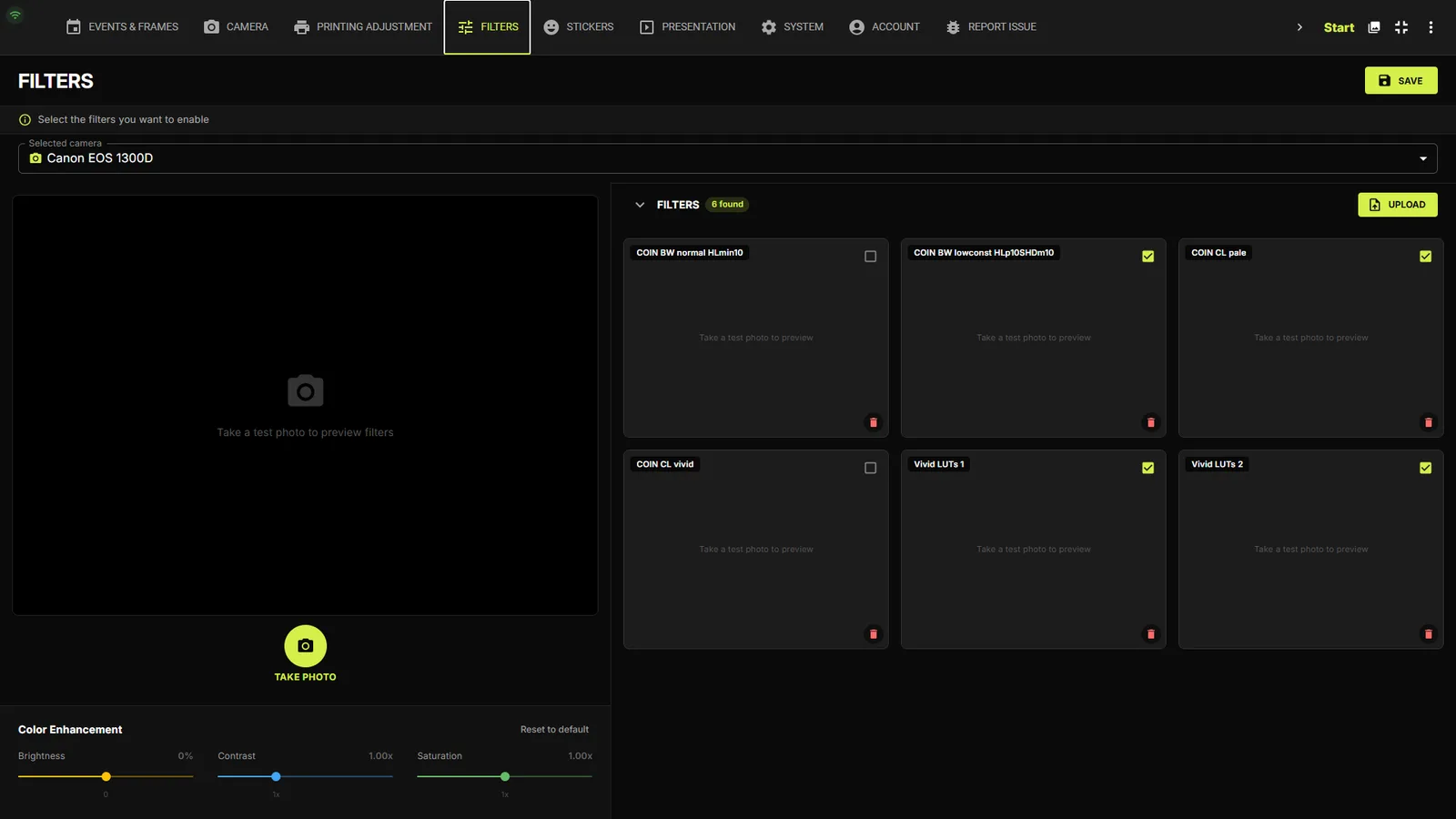
Below the preview, three sliders fine-tune the whole pipeline on top of the LUT: Brightness −30% to +30%, Contrast 0.5–2.0×, Saturation 0–2.0× — with a Reset to default link. Changes preview live on the test photo.
Sticker poolPro
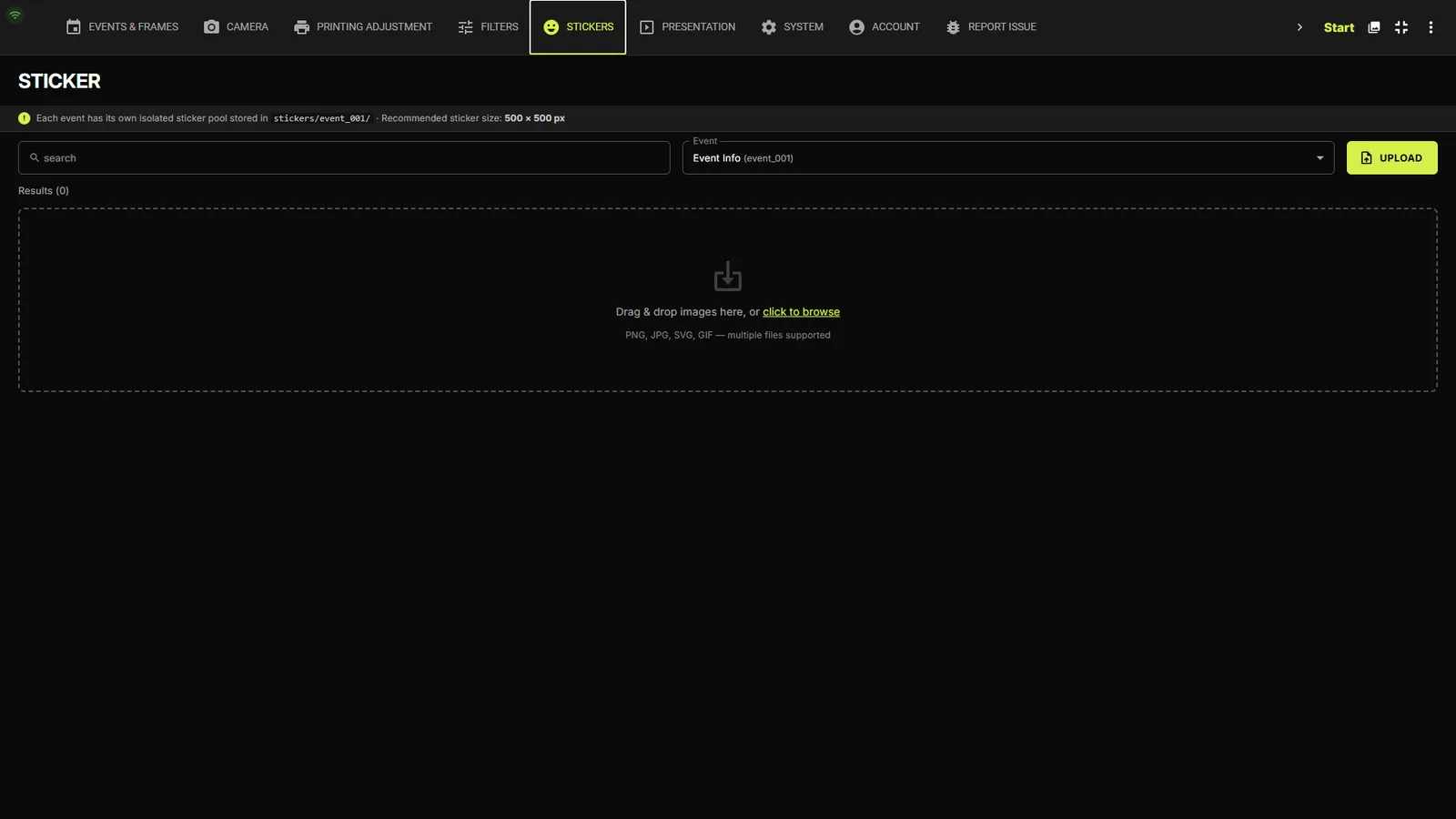
The STICKERS tab holds the sticker library. Upload PNG/JPG/GIF/SVG/WebP images, then assign them per event — each event's accordion has checkboxes for which stickers appear in its editor.
Presentation / slideshowPro
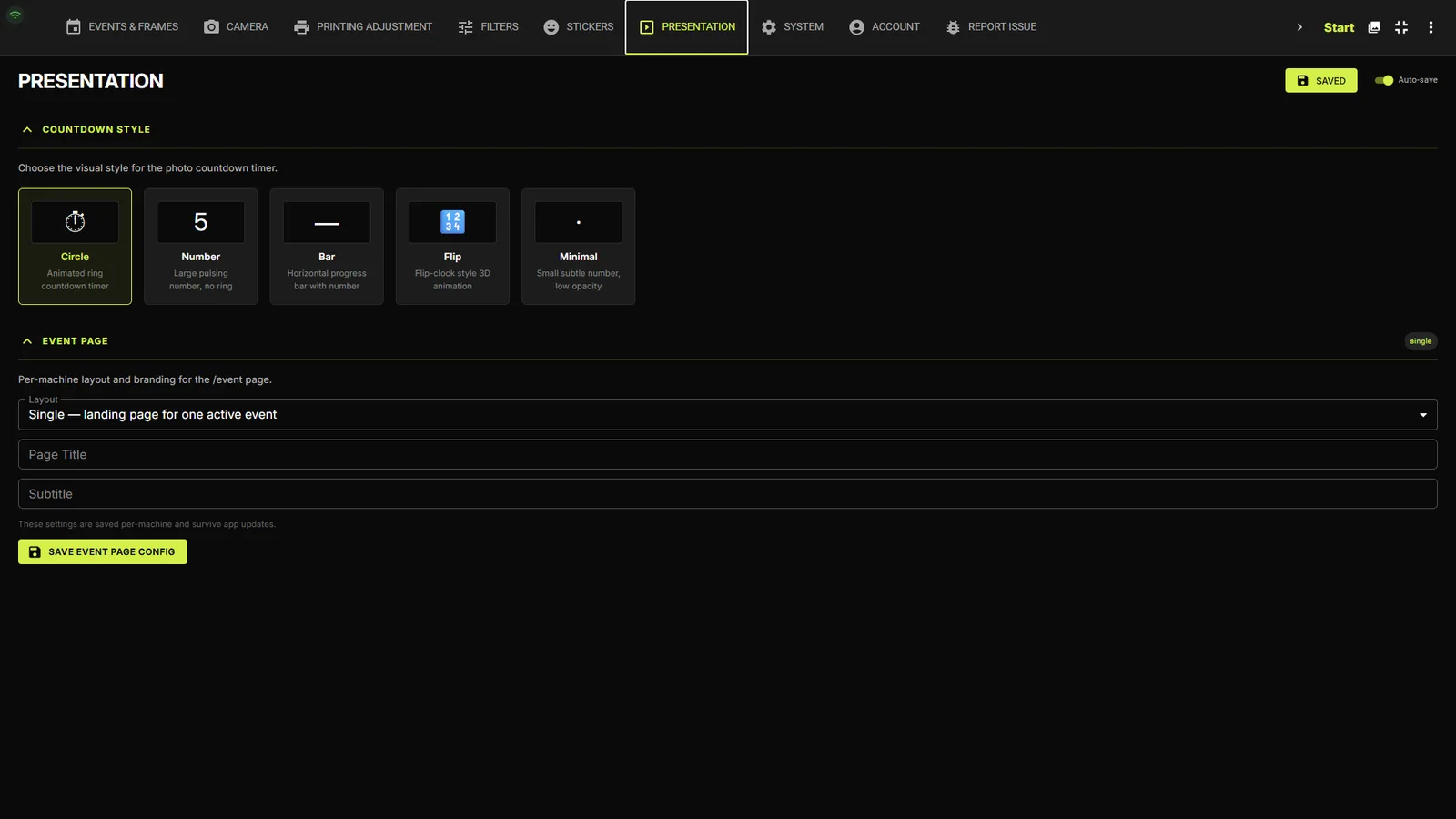
The PRESENTATION tab configures the global countdown style (Circle / Number / Bar / Flip / Minimal) plus video gallery and slideshow output: quality preset, duration and transitions.
Charging guests
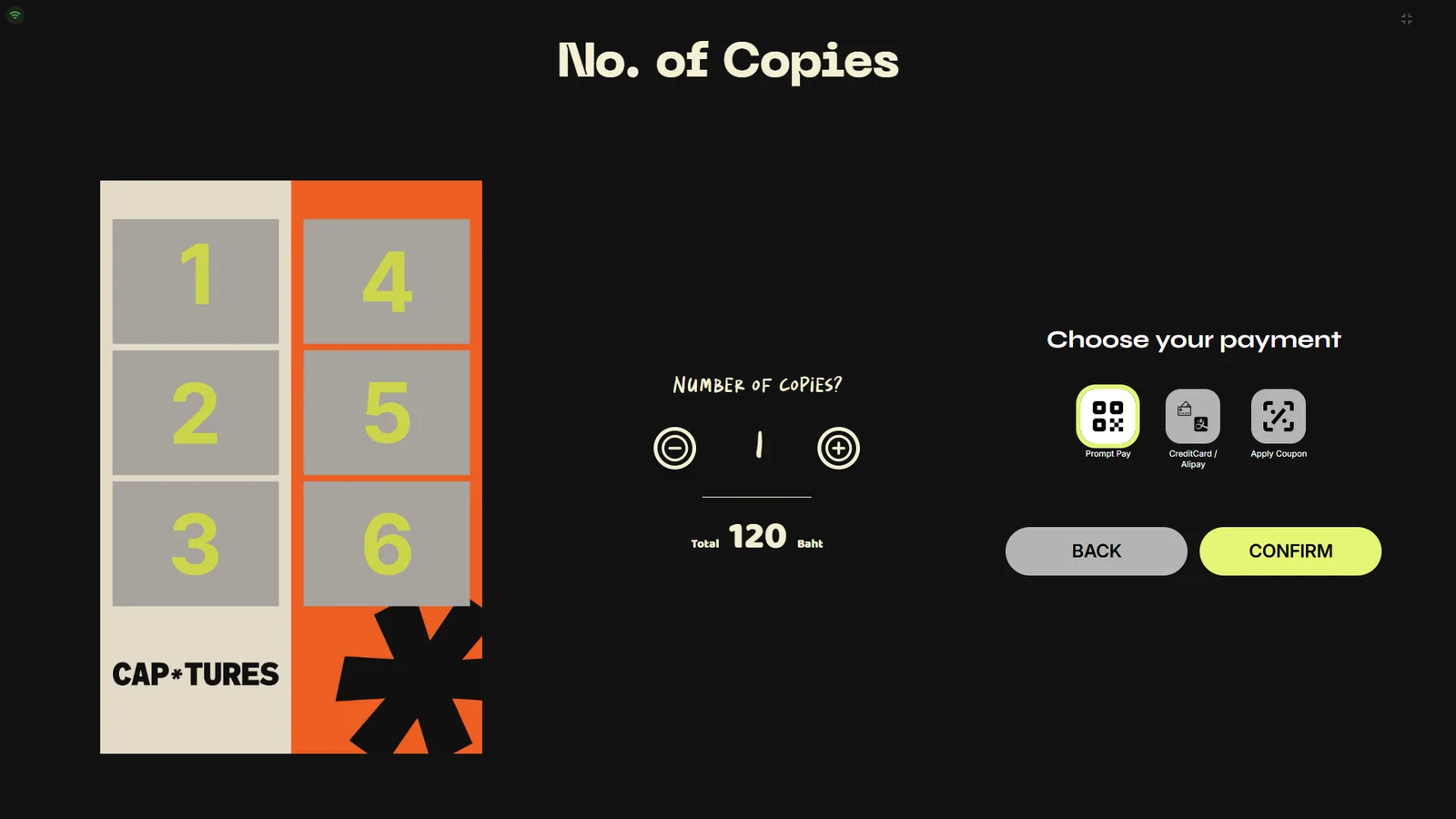
With a payment mode enabled (SYSTEM tab), guests choose the number of copies and a payment method before the shoot begins. Prices come from each frame's Basics tab (or the event's price rows).
Copies & payment methodPro
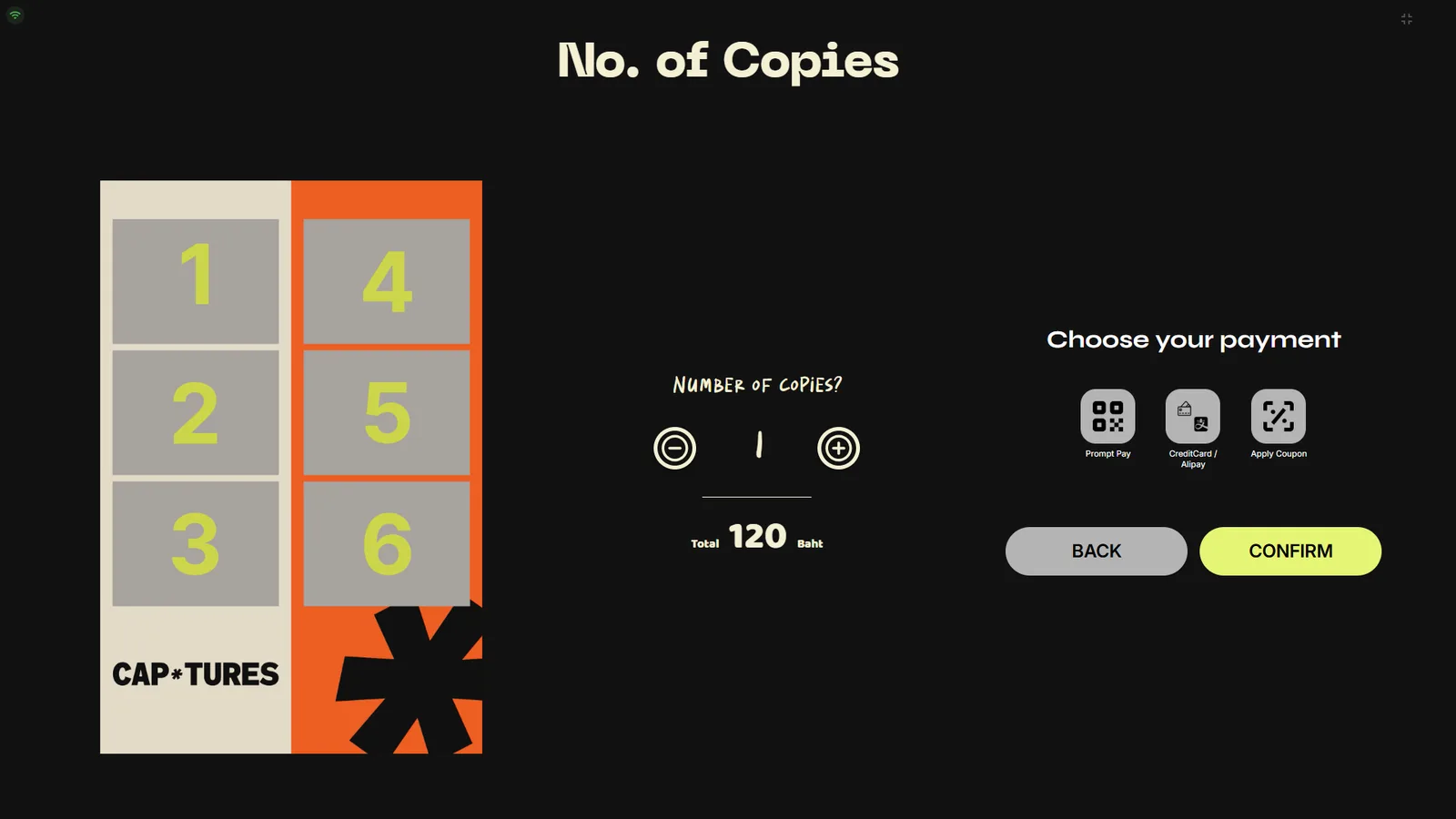
The No. of Copies screen shows a +/− stepper, the running total, and the enabled methods: Prompt Pay, CreditCard/Alipay, or Apply Coupon.
A method must be chosenPro
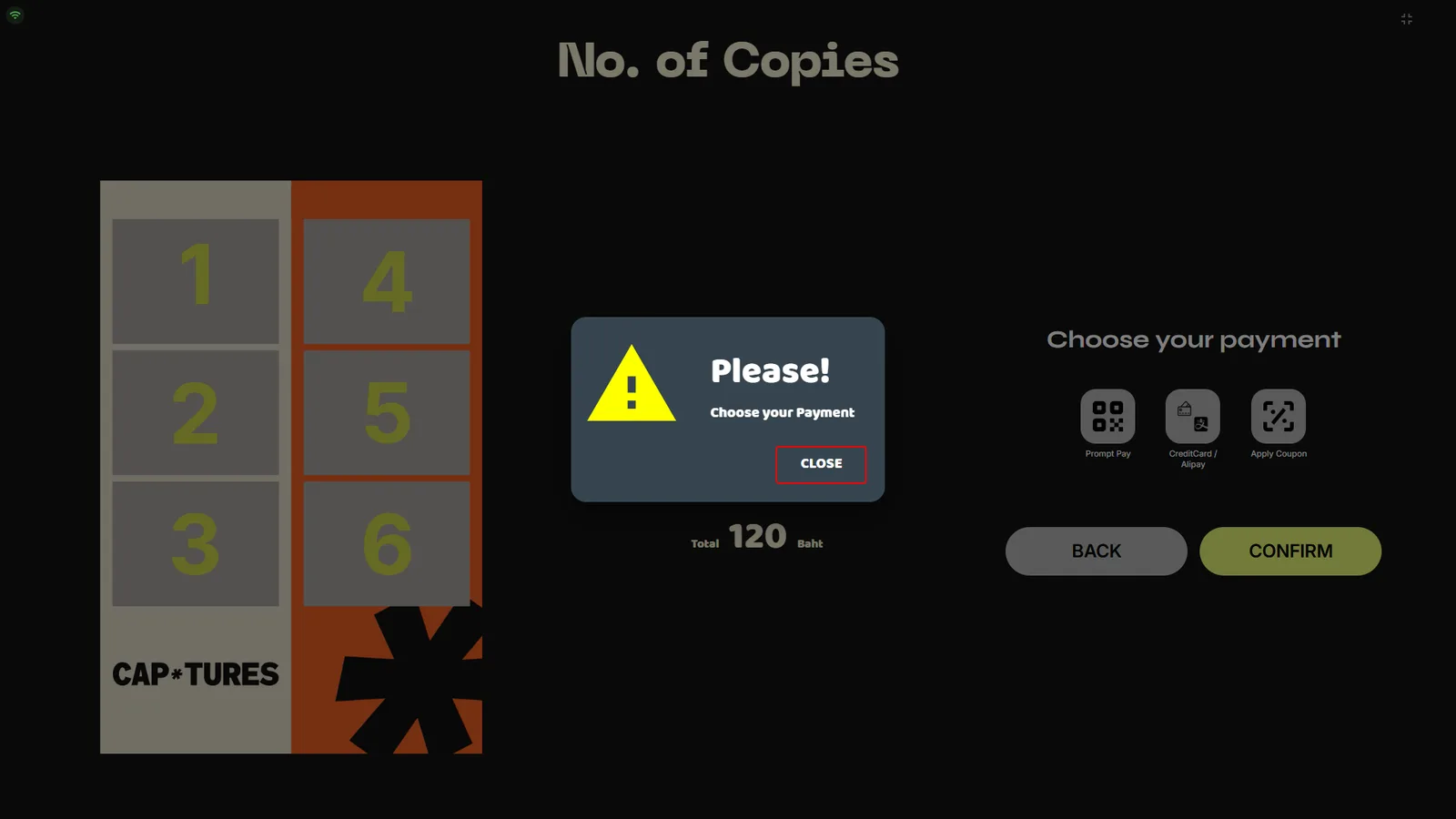
Pressing CONFIRM without picking a method shows a reminder dialog.
PromptPay QRPro
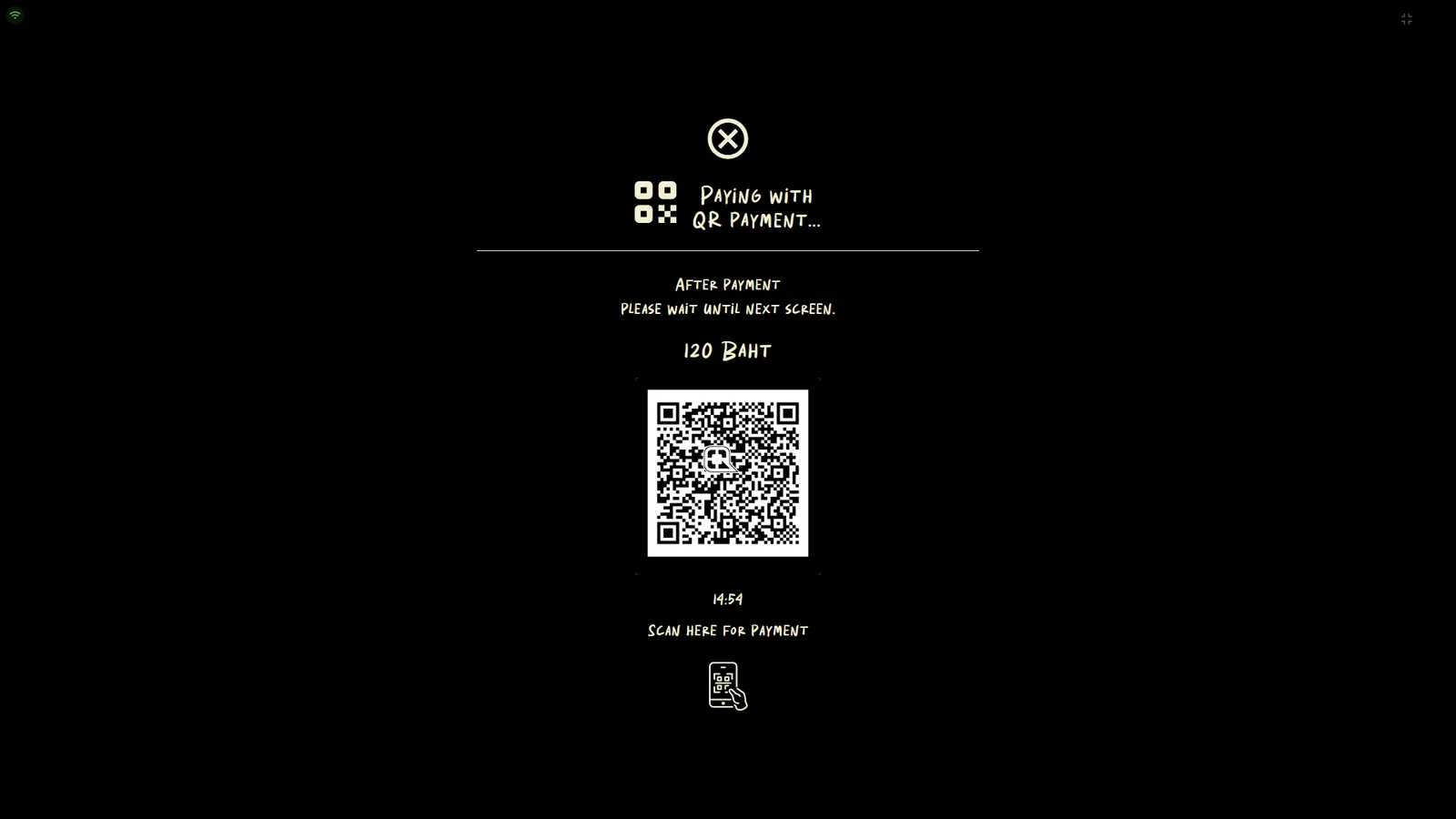
Selecting Prompt Pay and confirming shows a live QR code with the amount and a countdown. The kiosk continues automatically once payment is received; the ✕ button cancels back to the copies screen.
TipExtra copies can be priced differently from the first print — the event's price rows let you discount additional copies.
Card payments & securityPro
Choosing CreditCard/Alipay on the copies screen gives the guest a secure payment link to complete the card payment. All card processing happens with an independent payment processor — the kiosk never stores or even sees card details.
CouponsPro
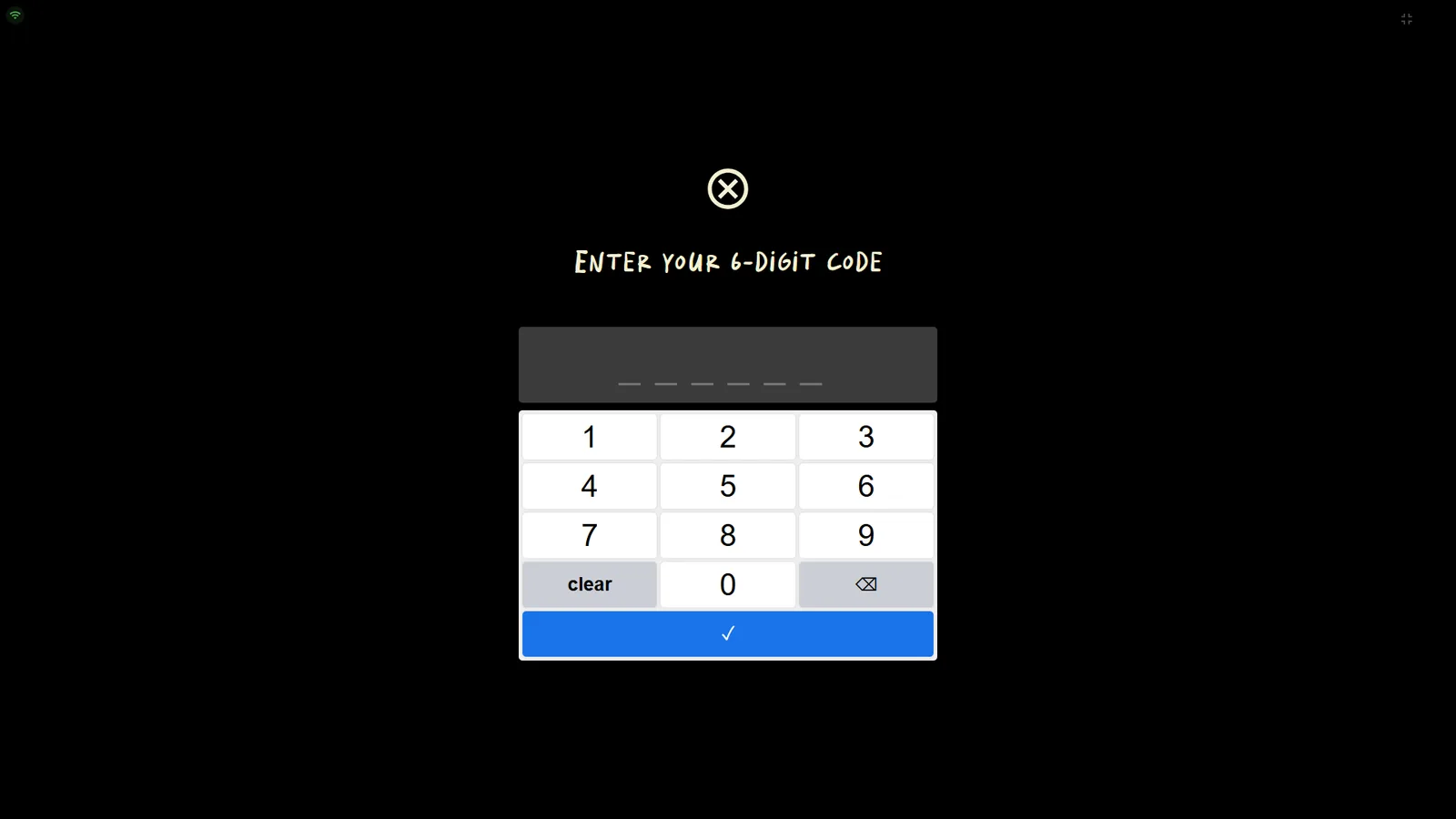
Apply Coupon opens a code-entry screen for prepaid or promotional codes. Enable/disable the coupon tile from the SYSTEM tab.
Gallery, reprint & uploads
Photo gallery
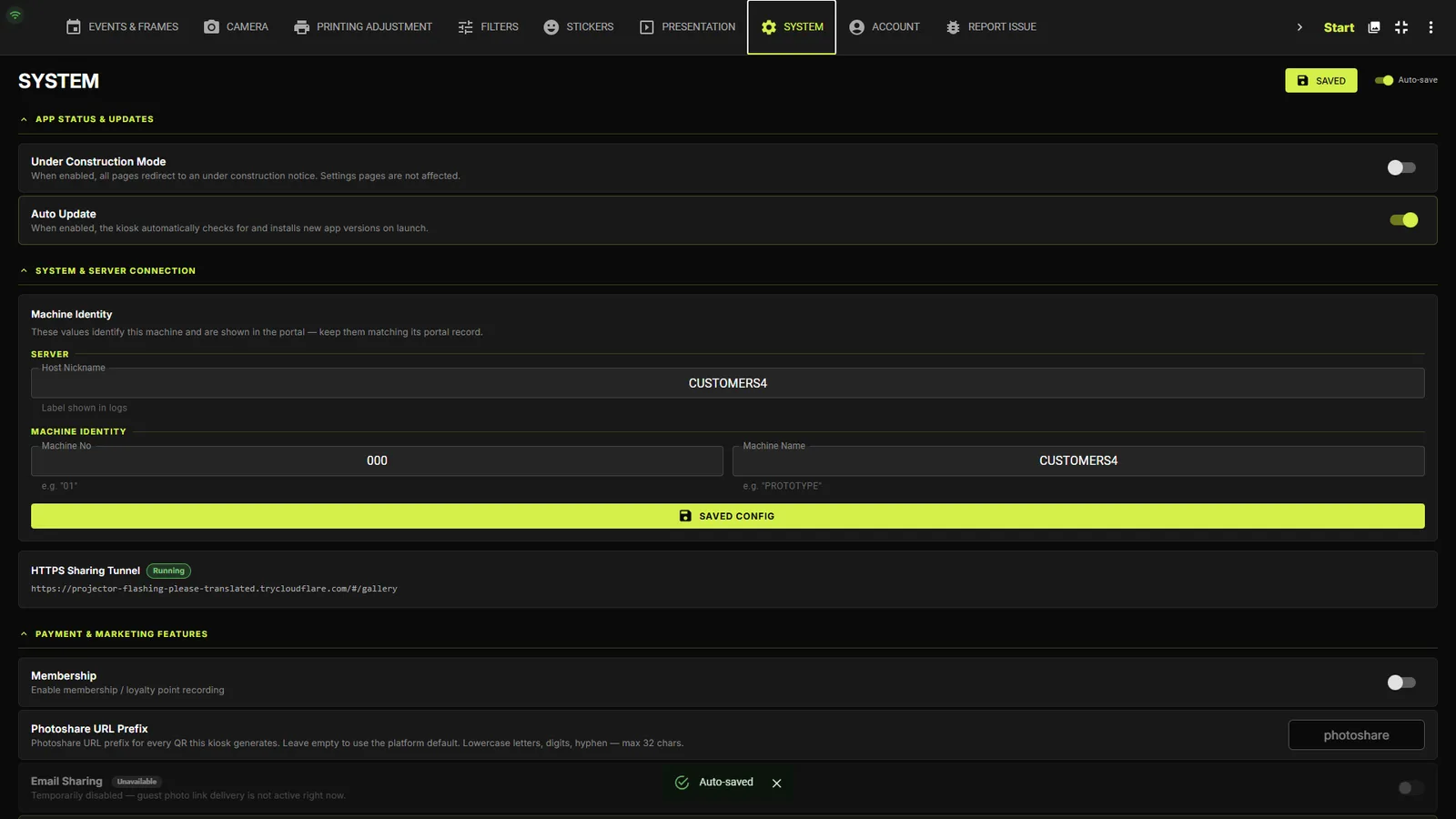
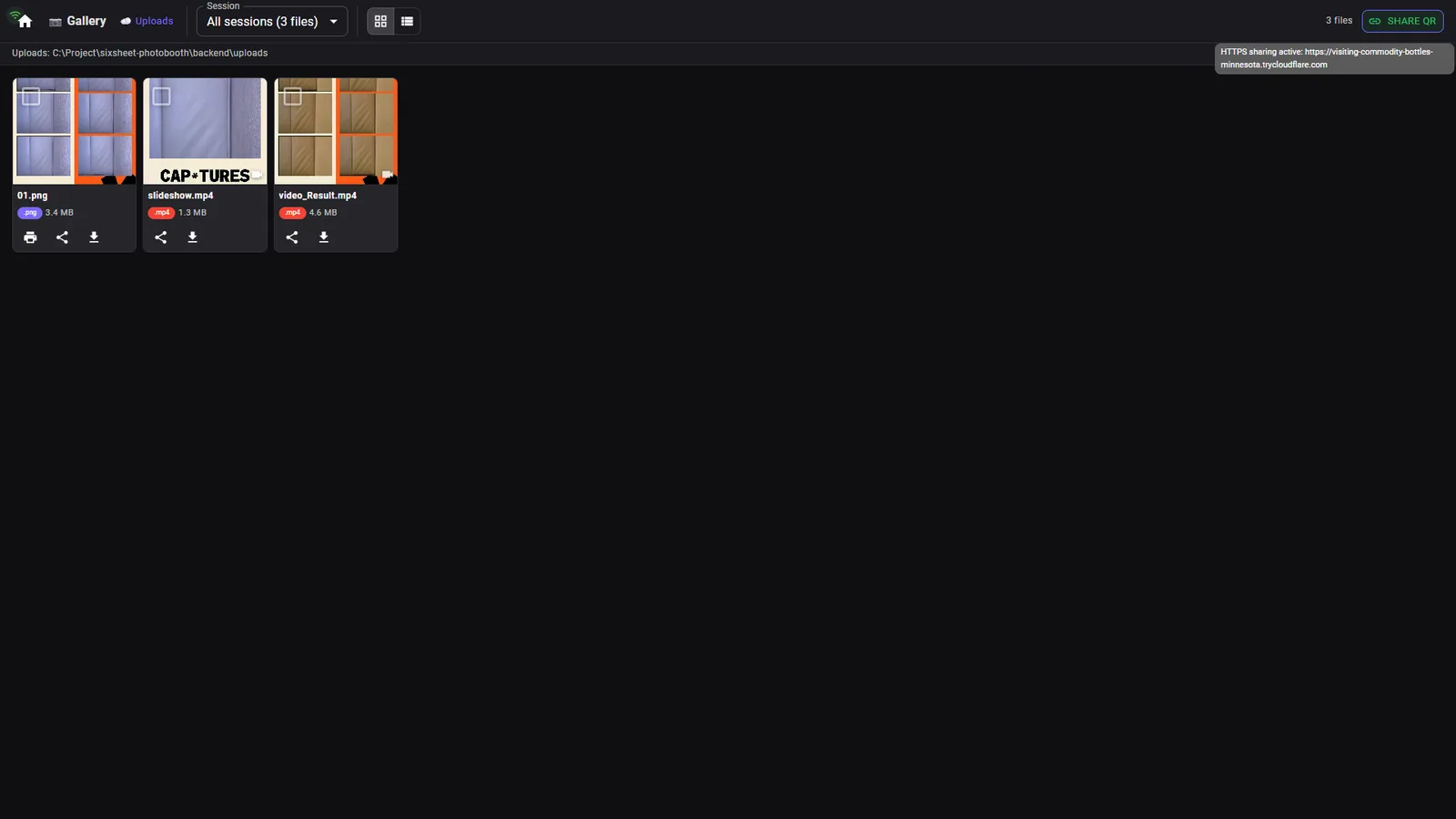
The Gallery (top bar in Settings) lists every session the kiosk produced, 20 per page, in grid or list view. Multi-select files to share or download in bulk, copy the HTTPS tunnel URL (with QR) for mobile access, and even add other booth machines on the network to browse their galleries.
Reprint an old photoPro
Press Reprint on any gallery file. The kiosk reuses the margins saved from that printer's recent jobs; if none exist and the event has no default printer, a dialog asks you to pick one. Each press prints one copy.
Upload queuePro
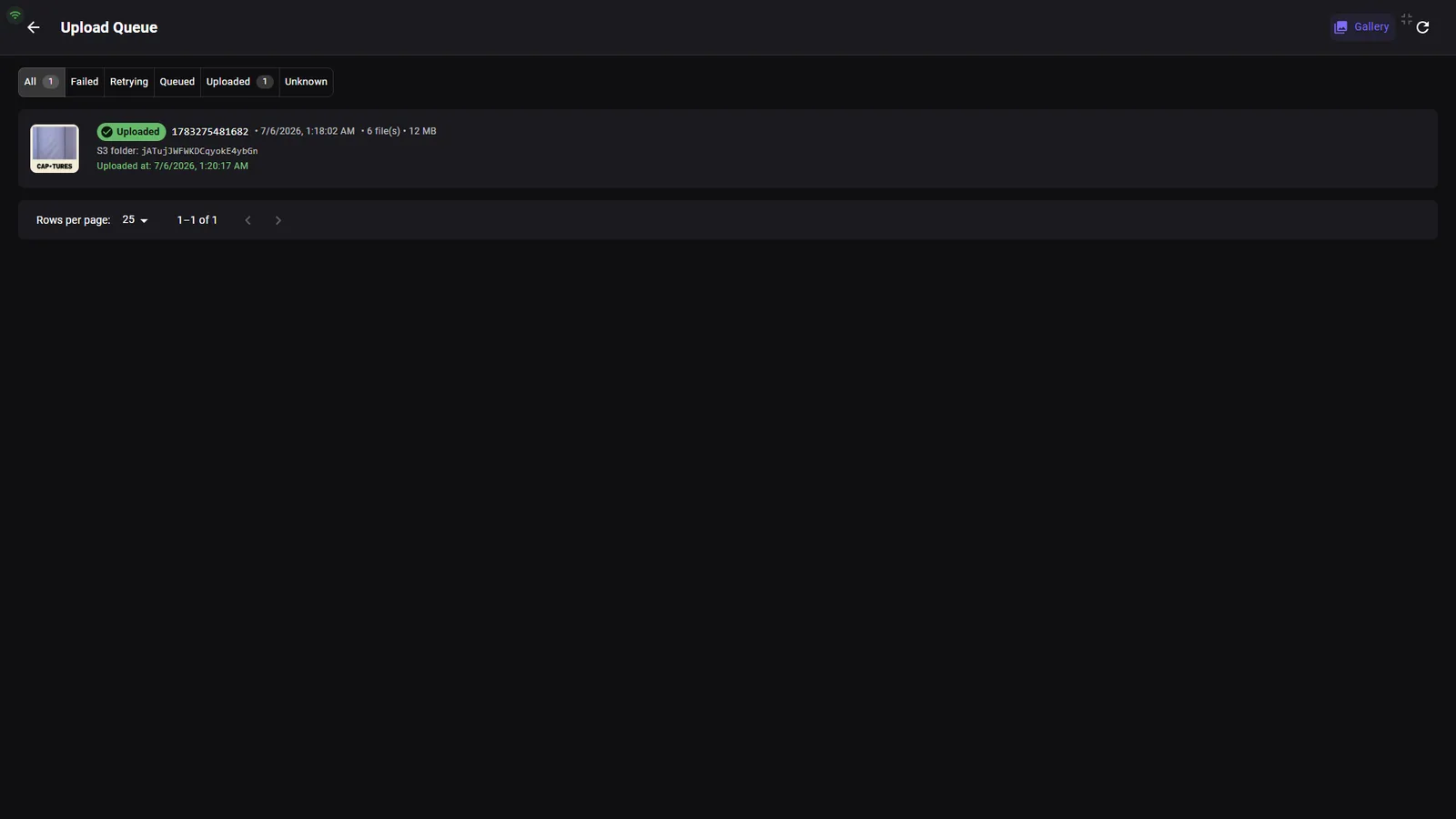
The Uploads page tracks the cloud uploads behind QR sharing. Filter chips show counts per status — Queued, Retrying, Failed, Uploaded, Unknown. Each row shows the session folder, file count/size, attempts and next retry time; Retry now re-queues a failed upload and Dismiss removes the failed entry (photos stay on disk).
Remote access to the galleryPro
Pro and Enterprise plans can enable secure remote access to the kiosk's photo gallery from Settings (the HTTPS Sharing Tunnel). You — or your support team — can check on an event and confirm photos are coming through from anywhere, without being on-site. Remote access only ever exposes the gallery: never payments, camera controls or settings.